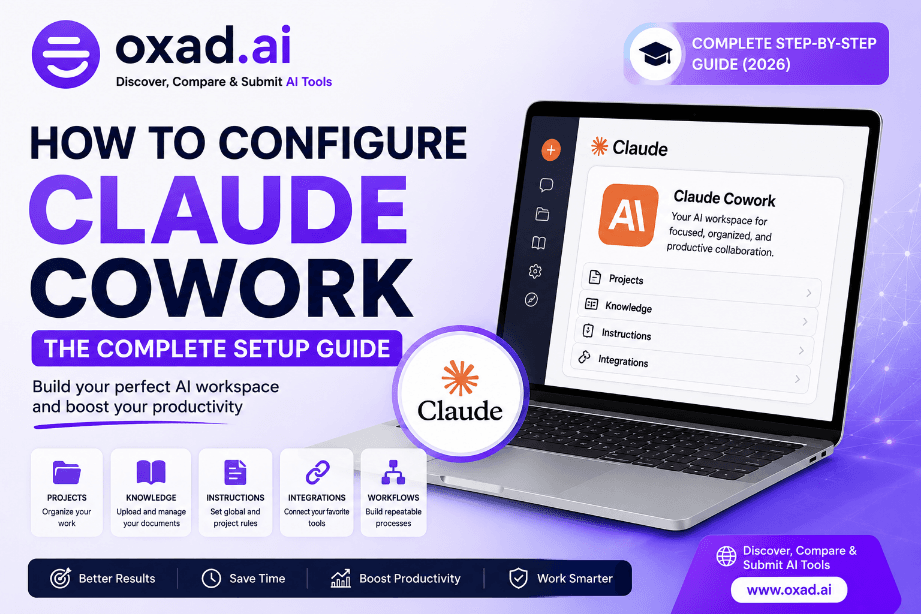
Artificial intelligence is rapidly evolving from a simple chatbot into a true digital coworker. With Claude Cowork, Anthropic introduces a new way to collaborate with AI by allowing users to organize projects, maintain long-term context, connect knowledge sources, and create reusable workflows.
Whether you’re a developer, content creator, marketer, entrepreneur, researcher, or student, configuring Claude correctly from the beginning can dramatically improve productivity, response quality, and consistency.
This guide follows Anthropic’s official recommendations while incorporating proven workflow strategies used by experienced Claude users. Throughout the article, we’ll clearly distinguish between official Claude features and community-recommended productivity practices, ensuring you receive accurate, trustworthy, and practical guidance.
What You’ll Learn
- What Claude Cowork is and how it differs from regular AI chatbots
- Official setup process recommended by Anthropic
- How to organize projects for long-term productivity
- How to configure global instructions effectively
- How to build reusable AI workflows
- Common mistakes to avoid
- Professional best practices used by power users
What Is Claude Cowork?
Claude Cowork is Anthropic’s collaborative workspace experience that transforms Claude from a conversation-based assistant into an AI teammate capable of working with persistent project knowledge, reusable instructions, connected documents, and structured workflows.
Instead of starting from scratch every time you open a new conversation, Claude Cowork allows you to build an organized environment where the AI understands your project goals, references your uploaded materials, and follows consistent instructions throughout your work.
This makes it particularly valuable for ongoing projects that require continuity, including:
- Software development
- Technical documentation
- Marketing campaigns
- Business planning
- Academic research
- Content production
- Customer support documentation
- Knowledge management
Claude Cowork vs Traditional AI Chatbots
| Feature | Traditional Chat | Claude Cowork |
|---|---|---|
| Persistent project context | ❌ | ✅ |
| Project instructions | Limited | ✅ |
| Knowledge organization | Minimal | Advanced |
| Long-term workflows | ❌ | ✅ |
| Reusable workspace | ❌ | ✅ |
Official vs Community Recommendations
One of the biggest sources of confusion surrounding Claude Cowork is the large number of setup tutorials shared online.
Some recommendations are officially supported by Anthropic, while others are simply productivity techniques developed by experienced users.
| Official Claude Features | Community Productivity Tips |
|---|---|
| Projects | Creating ABOUT ME folders |
| Project Instructions | Markdown profile files |
| Global Instructions | Personal workflow templates |
| Knowledge uploads | Obsidian integration |
| Connected services | Interview prompts |
This guide focuses primarily on official Claude functionality while introducing community practices only when they add real productivity benefits.
Before You Begin
Before configuring Claude Cowork, make sure you have access to the features required for project-based collaboration.
Recommended Requirements
- Latest version of Claude Desktop (recommended)
- An active Claude account
- Claude plan that includes Projects and advanced workspace capabilities (availability depends on your subscription)
- A clear understanding of the type of work you’ll perform with Claude
- Documents, notes, or reference material you’d like Claude to use during future conversations
Expert Tip
Spend a few minutes planning your workspace before creating your first project. A well-organized Claude workspace becomes significantly more valuable as your projects grow over time.
Step 1 — Install Claude Desktop
The first step is installing the official Claude desktop application. While Claude also works in a web browser, the desktop experience is generally recommended for users who spend significant time collaborating with Claude across multiple projects.
The desktop application provides a more focused workspace and is designed to support long-term AI collaboration.
Installation Checklist
- Download the official Claude Desktop application.
- Sign in using your Claude account.
- Update the application to the latest version.
- Verify that Projects are available in your workspace.
Why This Matters
Using the latest version ensures compatibility with newly released Cowork features, performance improvements, and security updates provided by Anthropic.
Step 2 — Choose the Right Claude Plan
Before building your AI workspace, verify that your Claude subscription provides access to the features you intend to use. Anthropic offers different plans with varying capabilities, including Projects, larger context windows, higher usage limits, and collaboration features.
For occasional users, the free plan may be sufficient. However, professionals managing ongoing projects, technical documentation, software development, or large knowledge bases will benefit from one of Claude’s paid plans.
Which Plan Should You Choose?
| User Type | Recommended Plan | Reason |
|---|---|---|
| Students | Free | Learning and experimentation |
| Content Creators | Pro | Higher limits and Projects |
| Developers | Pro or Max | Large codebases and long conversations |
| Business Teams | Team or Enterprise | Collaboration and centralized management |
Editor’s Note
Anthropic periodically updates subscription plans and feature availability. Always review the latest plan comparison before upgrading.
Step 3 — Create Your First Claude Project
Projects are the foundation of Claude Cowork.
Unlike ordinary conversations, a Project stores instructions, uploaded documents, conversations, and shared context in one dedicated workspace. Every future conversation inside that Project automatically inherits its context, making Claude significantly more consistent and productive.
What Should Each Project Represent?
The best practice is creating one Project for each major objective rather than placing everything into one workspace.
Examples
- Marketing Campaigns
- Software Development
- Research Notes
- Company Knowledge Base
- Technical Documentation
- Personal Writing
- Customer Support
- SEO Content Production
Professional Recommendation
Treat every Project like a dedicated department inside your company. The clearer its purpose, the better Claude performs.
Step 4 — Configure Project Instructions
Project Instructions are one of Claude’s most valuable features.
Instead of repeating the same prompt before every conversation, you define permanent instructions that Claude automatically follows whenever you work inside the Project.
Examples of Useful Project Instructions
- Always write in professional American English.
- Prefer concise explanations unless additional detail is requested.
- Follow our brand voice.
- Use Markdown formatting.
- Include SEO recommendations whenever appropriate.
- Explain technical decisions clearly.
- Never invent facts.
- Cite reliable sources whenever available.
Best Practice
Project Instructions should describe permanent working rules rather than individual tasks. Task-specific requests belong inside the conversation itself.
Step 5 — Upload Your Knowledge Base
One of Claude Cowork’s greatest strengths is its ability to reference documents stored within a Project.
Instead of repeatedly uploading the same files, you can build a reusable knowledge base that Claude consults whenever it answers questions related to that Project.
Documents Worth Uploading
- Company documentation
- Brand guidelines
- Writing style guides
- Product specifications
- Research papers
- Meeting notes
- Internal documentation
- Technical manuals
- Knowledge bases
- Frequently used templates
Official Feature vs Community Practice
Official: Upload documents directly into your Claude Project so the AI can reference them.
Community Recommendation: Some advanced users maintain carefully organized Markdown documentation before uploading it because structured files are easier for both humans and AI to navigate.
While this organization strategy can improve workflow, it is a productivity technique rather than an Anthropic requirement.
Why Project Organization Matters
As your workspace grows, dozens—or even hundreds—of conversations can accumulate inside a single Project.
Good organization improves consistency, reduces duplicated work, and allows Claude to build on previous discussions more effectively.
| Poor Organization | Professional Organization |
|---|---|
| One project for everything | Separate projects by objective |
| Random file uploads | Organized documentation |
| Repeated prompts | Reusable Project Instructions |
| Mixed conversations | Dedicated conversations per task |
Key Takeaways
- Choose the Claude subscription that matches your workload.
- Create separate Projects for different goals.
- Use Project Instructions to eliminate repetitive prompting.
- Build a structured knowledge base with reliable documents.
- Keep Projects organized from day one to maximize Claude’s long-term effectiveness.
Step 6 — Configure Global Instructions
While Project Instructions apply to a single workspace, Global Instructions define how Claude behaves across your entire account.
Think of Global Instructions as your permanent collaboration preferences. Instead of repeating the same expectations in every conversation, you can configure Claude once and allow those preferences to carry across your daily workflow.
Examples include your preferred writing style, response format, technical expertise level, language, coding conventions, or communication tone.
Good Global Instructions Include
- Always provide factual and verifiable information.
- Avoid unnecessary repetition.
- Use clear headings and structured formatting.
- Prefer concise answers unless detailed explanations are requested.
- Mention assumptions whenever information is uncertain.
- Use professional American English.
- Explain technical concepts clearly.
Expert Tip
Keep Global Instructions focused on your permanent preferences. Project-specific requirements should remain inside individual Projects to avoid conflicts.
Step 7 — Choose the Best Claude Model
Claude provides multiple AI models optimized for different workloads. Selecting the appropriate model improves both response quality and operating costs.
Although model names and availability may evolve over time, the general principle remains the same: use the most capable reasoning model for difficult work and the faster model for everyday tasks.
| Task | Recommended Model |
|---|---|
| Research | Claude Opus |
| Software Development | Claude Opus |
| Technical Analysis | Claude Opus |
| Daily Writing | Claude Sonnet |
| Brainstorming | Claude Sonnet |
| General Questions | Claude Sonnet |
Professional Recommendation
Reserve the most powerful reasoning model for tasks that truly require deep analysis. For everyday conversations, the faster model is often the more efficient choice.
Step 8 — Connect Your Workspace and Knowledge Sources
Claude becomes significantly more valuable when it can reference the information you work with every day.
Depending on your subscription and available integrations, Claude can connect to supported services, allowing it to retrieve information from documents, notes, and collaborative workspaces while respecting your permissions.
Examples of Supported Knowledge Sources
- Google Workspace
- Google Drive
- Slack
- GitHub
- Connected documentation
- Uploaded project files
Connecting trusted knowledge sources reduces repetitive uploads and enables Claude to work with the latest available information inside your authorized workspace.
Security Best Practice
Only connect accounts and documents that Claude genuinely needs to access. Following the principle of least privilege helps protect sensitive information and simplifies workspace management.
Community Workflow Recommendation: Organizing Your Personal Knowledge
This section describes a popular productivity technique used by experienced Claude users. It is not an official Anthropic requirement, but many professionals find it useful.
Instead of storing notes randomly, some users maintain a structured documentation system containing information Claude references frequently.
| Suggested Folder | Purpose |
|---|---|
| About Me | Personal working preferences and background |
| Templates | Reusable prompts and document structures |
| Reference Documents | Frequently used knowledge resources |
| Outputs Archive | Important reports and finalized work |
Important
This organization method originates from the Claude user community. Claude Cowork functions perfectly without it, but structured documentation often improves long-term productivity.
Common Configuration Mistakes
| Mistake | Better Approach |
|---|---|
| Using one Project for everything | Create separate Projects by objective |
| Repeating the same prompts every day | Use Project Instructions |
| Uploading duplicate files | Maintain a clean project knowledge base |
| Mixing unrelated conversations | Separate conversations by task |
| Ignoring security permissions | Connect only trusted data sources |
Key Takeaways
- Configure Global Instructions only once for permanent preferences.
- Select the Claude model that matches your workload.
- Use official integrations whenever available.
- Organize knowledge before uploading it.
- Separate official Claude features from community productivity techniques.
- A clean, structured workspace consistently produces higher-quality AI assistance.
Step 9 — Build Reusable AI Workflows
One of the biggest advantages of Claude Cowork is that you don’t need to reinvent your workflow every time you start a new conversation.
Instead of repeatedly writing lengthy prompts, experienced users create standardized workflows that can be reused across multiple projects. This improves consistency, saves time, and produces more predictable results.
A workflow typically combines:
- Project Instructions
- Reference documents
- Reusable prompt templates
- Knowledge files
- Conversation history
Example Workflow
- Create a dedicated Project.
- Add permanent Project Instructions.
- Upload relevant documentation.
- Start task-specific conversations.
- Reuse successful prompts for future work.
- Update your knowledge base whenever new information becomes available.
Step 10 — Collaborate with Claude Efficiently
Claude performs best when treated as a collaborative assistant rather than a simple question-answering chatbot.
Instead of asking for an entire project in a single prompt, divide complex work into logical stages.
Recommended Collaboration Process
| Phase | Goal |
|---|---|
| Planning | Define objectives and requirements. |
| Research | Collect reliable information. |
| Drafting | Generate the initial version. |
| Review | Improve accuracy and clarity. |
| Finalization | Prepare the finished deliverable. |
Professional Tip
Breaking large projects into smaller milestones helps Claude maintain higher accuracy and reduces the likelihood of overlooked details.
Advanced Productivity Tips
Once your workspace is configured, a few additional habits can significantly improve long-term productivity.
- Create separate Projects for long-term clients.
- Archive completed conversations instead of deleting them immediately.
- Keep Project Instructions concise and regularly updated.
- Review uploaded documents to remove outdated information.
- Store frequently used prompts in reusable templates.
- Periodically refine your Global Instructions as your workflow evolves.
Security and Privacy Best Practices
Claude Cowork is designed with privacy and responsible AI usage in mind, but users should still follow sound security practices when working with sensitive information.
| Recommended Practice | Benefit |
|---|---|
| Review uploaded documents regularly. | Keeps your knowledge base current. |
| Avoid uploading unnecessary confidential information. | Reduces privacy risks. |
| Limit connected services to those you actively use. | Improves security management. |
| Review workspace permissions periodically. | Maintains secure collaboration. |
Frequently Asked Questions
Is Claude Cowork free?
Some Claude features are available on the free plan, while advanced workspace capabilities depend on your subscription level.
Do I need Claude Desktop?
No. Claude is available through the web interface as well, although many professionals prefer the desktop application for daily work.
Can I organize multiple projects?
Yes. Creating separate Projects for different clients, teams, or objectives is considered a best practice.
Are Markdown folders like “About Me” officially required?
No. These are community-created productivity techniques rather than official Anthropic features.
Should I trust Claude without verification?
No. Claude is a powerful assistant, but important business, legal, financial, scientific, and medical information should always be reviewed by an appropriate expert or verified against authoritative sources.
Final Thoughts
Claude Cowork represents a significant shift in how professionals interact with artificial intelligence. Rather than functioning as a simple conversational chatbot, it provides a structured workspace where projects, instructions, documents, and conversations remain connected over time.
By combining Anthropic’s official features with carefully selected productivity practices from the wider Claude community, you can build a reliable AI workspace that scales with your work and delivers more consistent results.
The most successful Claude users don’t rely on longer prompts—they rely on better organization, clearer instructions, and well-maintained project knowledge.
Ready to Discover More AI Productivity Tools?
Explore, compare, and evaluate thousands of AI tools across dozens of categories—including writing assistants, coding platforms, image generators, workflow automation solutions, and much more.